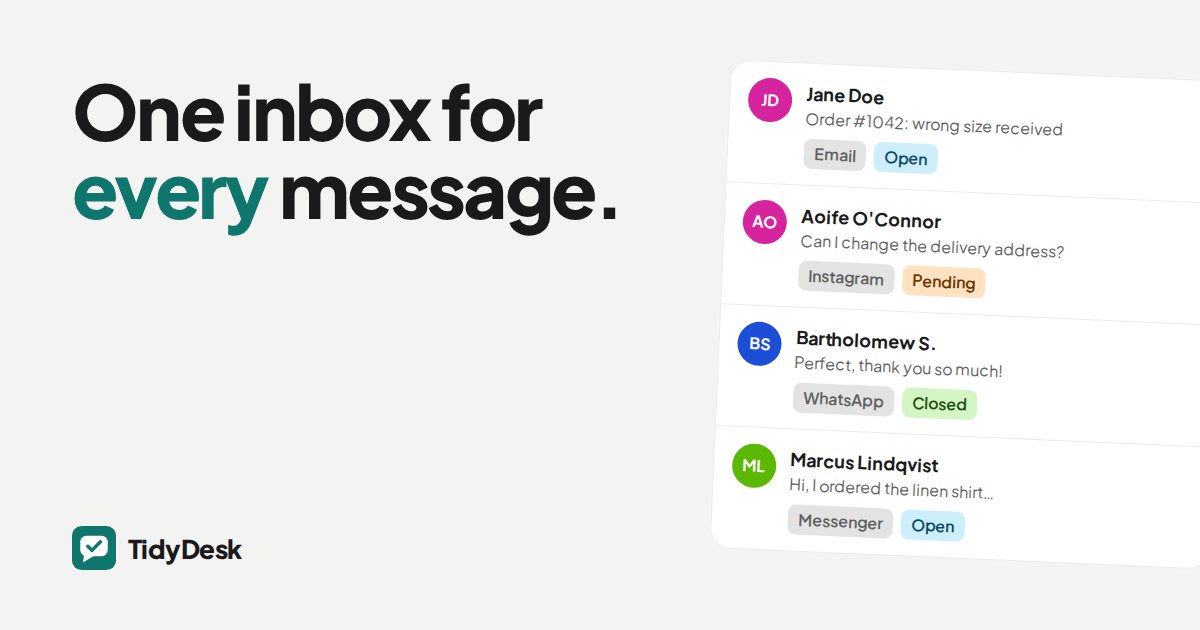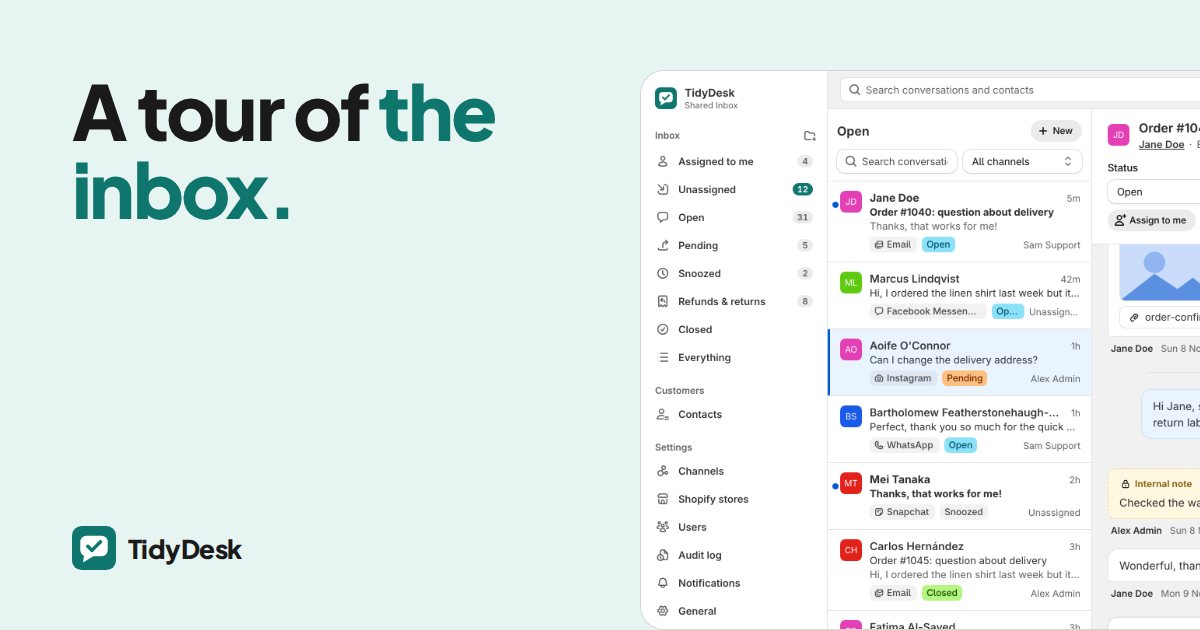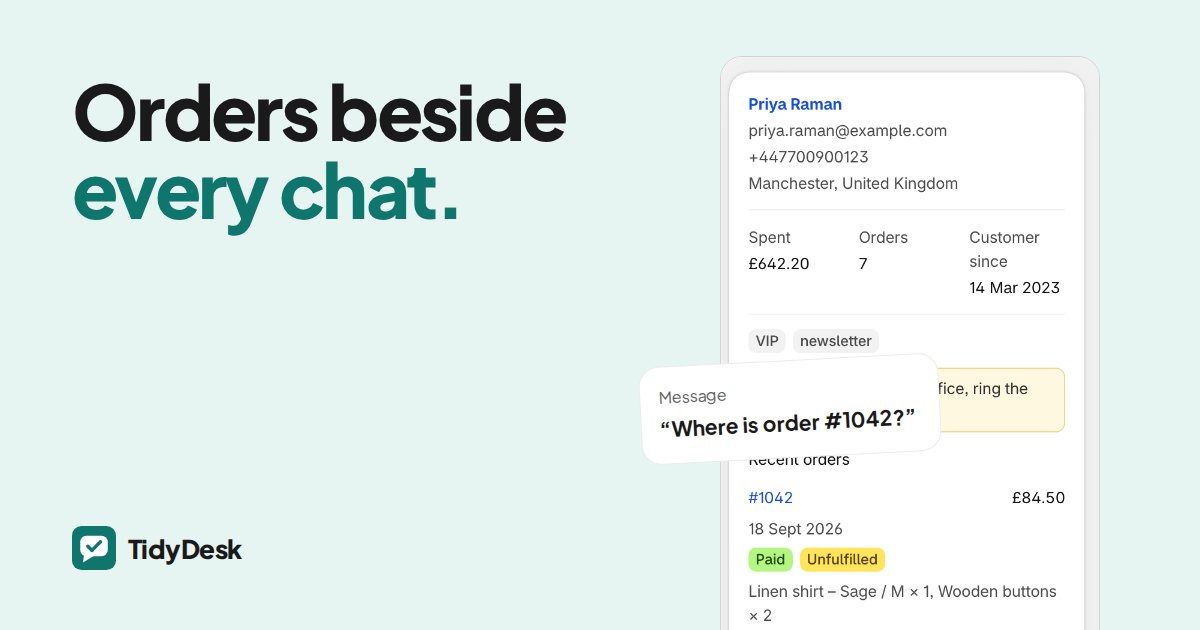
For most shops, email is the first channel to connect. TidyDesk reads the mailbox you already use, such as support@yourshop.com, and sends your replies through it, so customers just see normal email.
You'll need to be an admin of your TidyDesk to do this. Only admins can connect channels.
Start the guide.
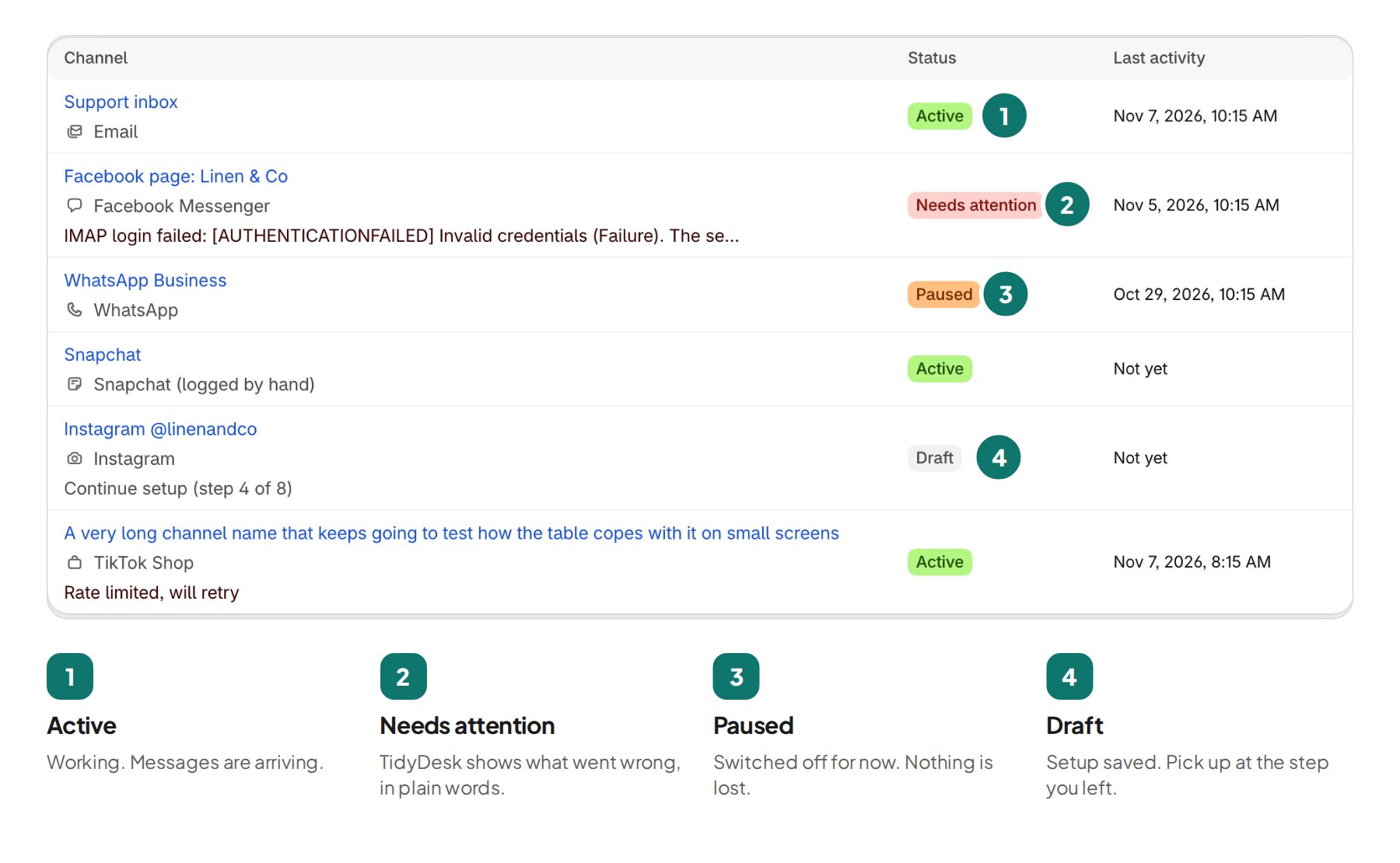
Go to Settings, then Channels. Under Connect a channel, choose Email. TidyDesk walks you through each step and saves your progress, so you can stop and come back later. A half-finished channel shows as a Draft with "Continue setup" beside it.
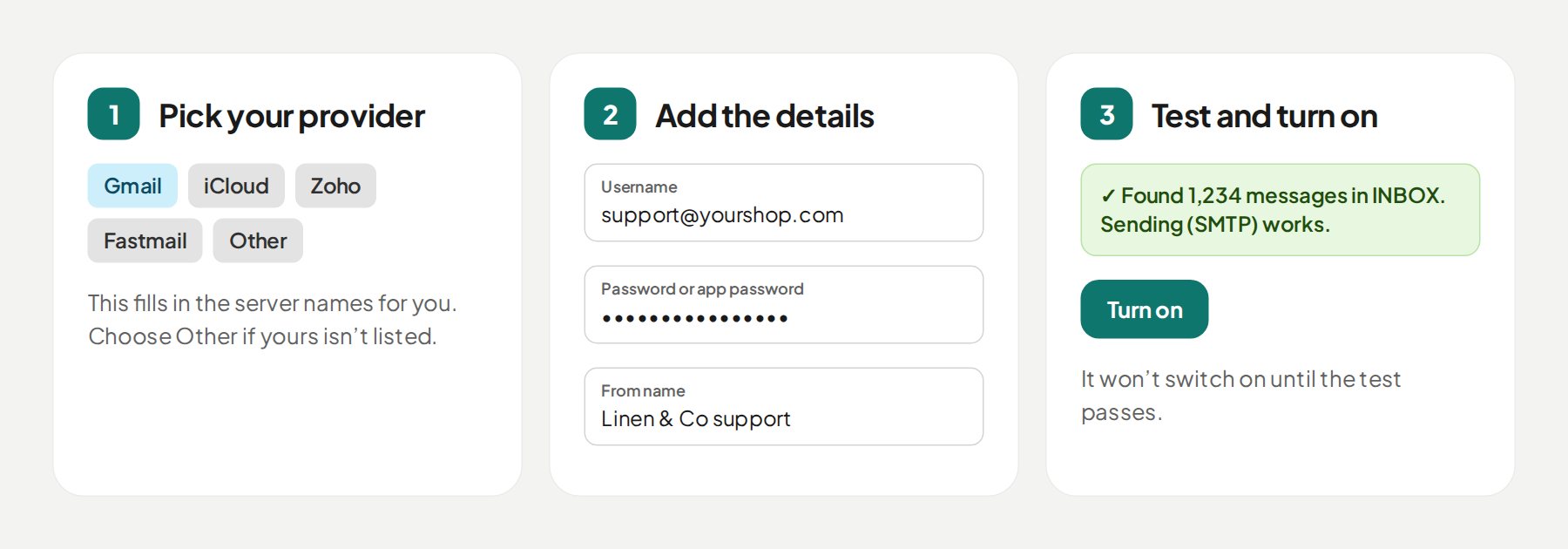
1. Pick your provider.
Choose Gmail, iCloud, Zoho, Fastmail or another from the list, and TidyDesk fills in the server names for you. If yours isn't there, choose Other and copy the details from your email host's help pages. Search for "IMAP settings" and "SMTP settings".
2. Add the details.
- Username is almost always the full email address.
- Password is where Gmail, iCloud, Zoho and Fastmail want an app password instead of your normal one (see below).
- From name and From address are what customers see on your replies.
Leave the connection type on IMAP if you can. IMAP looks at the mailbox where it lives, so your mail stays on the server and you can still read it in Gmail or on your phone. POP3 downloads mail and is only worth using if your provider has no IMAP.
What's an app password?
A normal password lets someone do everything with your account. An app password is a second, separate password that just one program, here TidyDesk, uses. If it ever leaks, you delete that one without changing your real password. Most providers insist on one once two-step verification is on.
For Gmail or Google Workspace, that looks like this:
- Turn on 2-Step Verification in your Google account's security settings.
- Open
myaccount.google.com/apppasswords, name it "TidyDesk" and create it. - Copy the 16-letter code into TidyDesk's Password field. Spaces don't matter.
- Check that IMAP is switched on in Gmail's settings, under Forwarding and POP/IMAP.
Google moves its menus around now and then, so if a name has changed, search Google's help for "app passwords". iCloud, Zoho and Fastmail work the same way, with an app-specific password in the account's security settings.
3. Test and turn on.
Press Test connection. A good result reads something like "Found 1,234 messages in INBOX. Sending (SMTP) works." TidyDesk won't let you switch the channel on until the test passes, and if it doesn't, it explains the problem in plain words.
Once it's on, TidyDesk imports the last seven days of mail, and you can change that number. After that it checks for new mail every minute.
If the test fails.
- Wrong username or password. Use an app password for Gmail, iCloud, Zoho and Fastmail, and check there's no space before or after it. Make sure IMAP is switched on for the account.
- Couldn't reach the server. Check the port and encryption match. The usual settings are 993 with SSL/TLS for IMAP, and 465 (SSL/TLS) or 587 (STARTTLS) for SMTP.
- Replies are rejected. The From address has to be one your provider lets that account send from.
A working channel shows as Active on the Channels page. If one stops working later, it shows Needs attention with the reason underneath. TidyDesk keeps trying every minute, so fixing the password in settings is enough.
One honest limit.
Microsoft 365 work and school mailboxes can be a problem. Many organisations have switched off password sign-in entirely, and TidyDesk doesn't support Microsoft's own sign-in method yet. If that's you, an admin needs to allow IMAP and authenticated SMTP for the mailbox, or you can use a different mailbox for support.
Connected? Now connect Shopify so every email comes with the customer's orders.