"Where's my order?" is the question every Shopify shop answers most. The old way is to read the message, copy the order number, switch to Shopify, find the order, copy the tracking link and switch back. TidyDesk puts all of that beside the chat.
What you'll see.
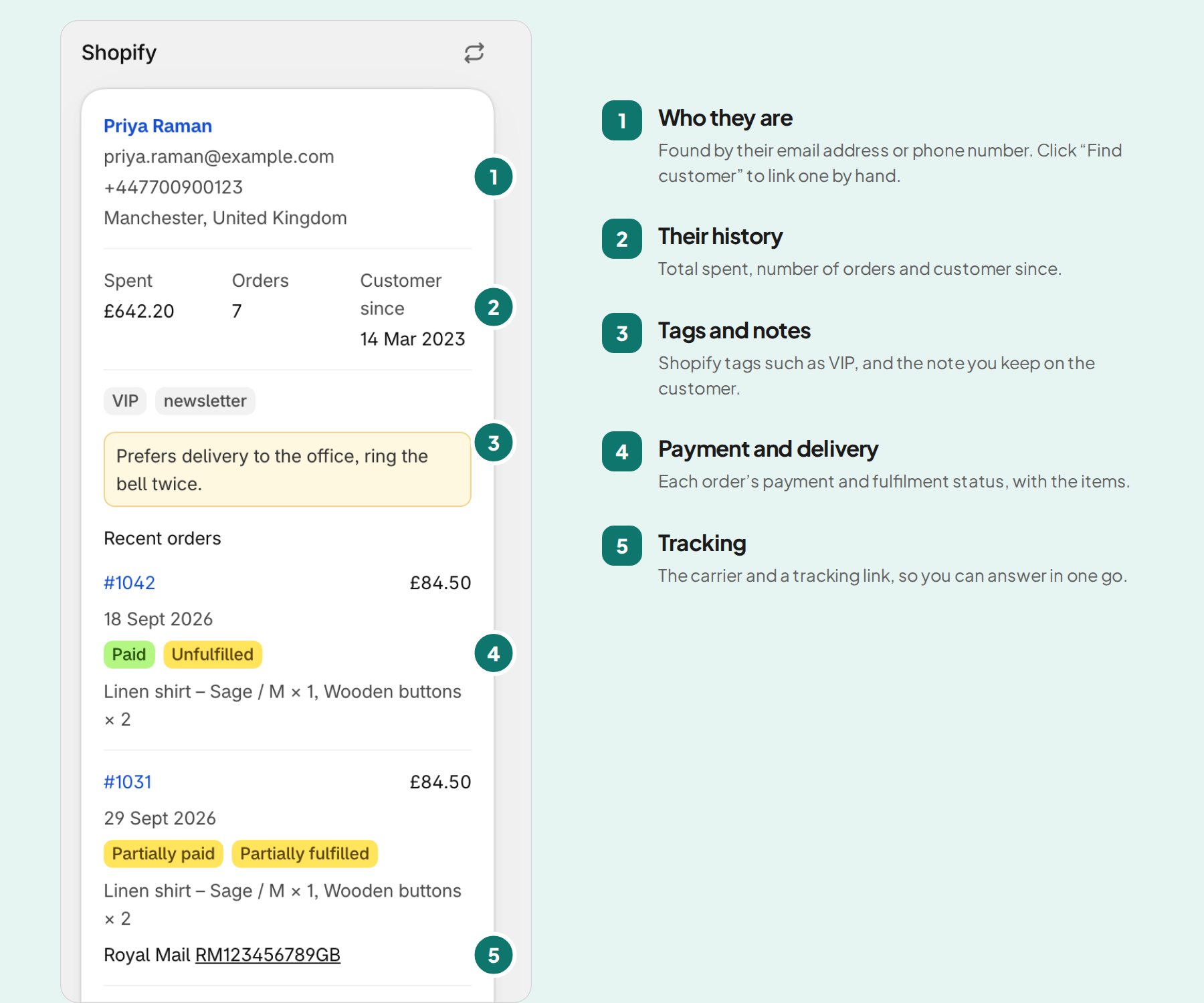
Open any conversation and the Shopify panel on the right shows:
- the customer's name, email, phone and location;
- their total spent, number of orders, and the date they became a customer;
- any Shopify tags, such as VIP, and the note you keep on them;
- their latest five orders, each with its payment and fulfilment status, the items, the carrier and a tracking link;
- a link straight into Shopify admin.
How TidyDesk finds the customer.
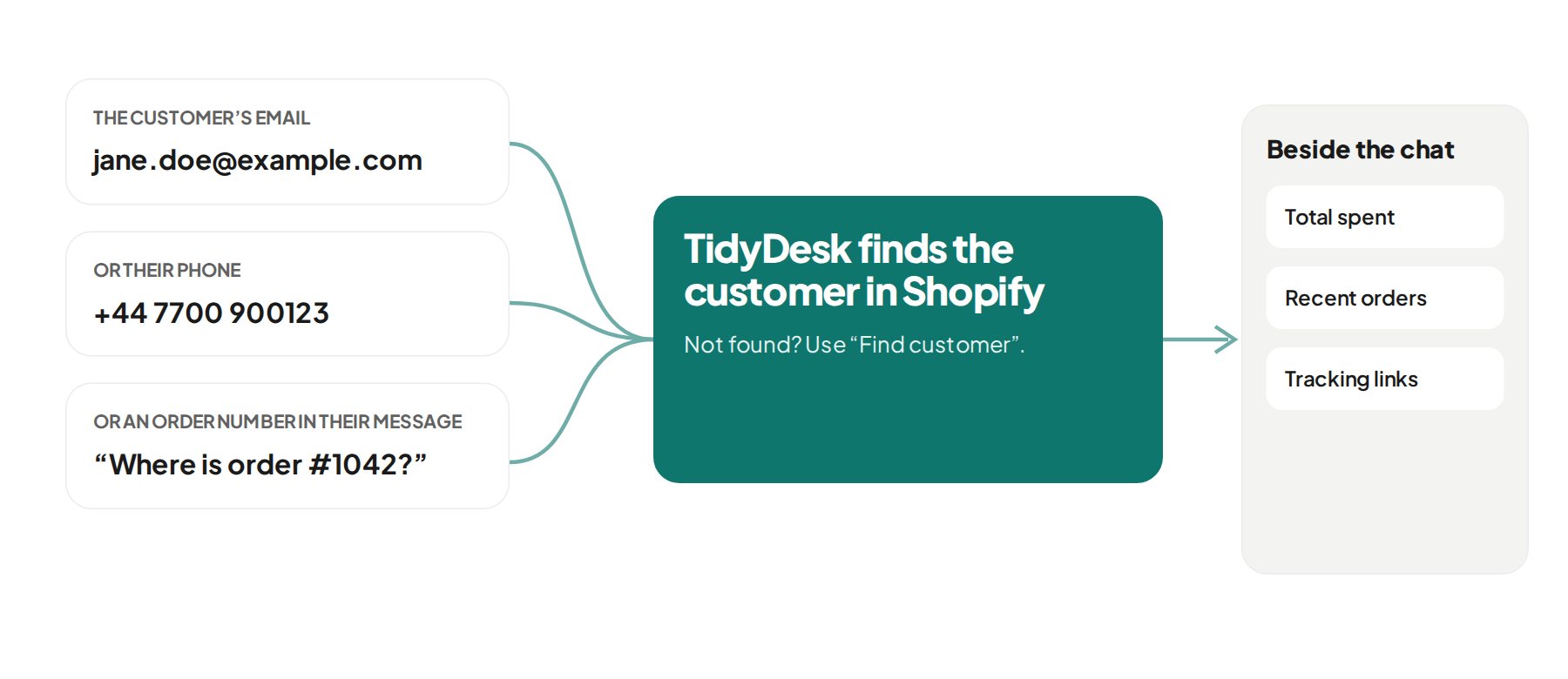
TidyDesk matches the customer by their email address or phone number. It also reads the conversation: if someone writes "where is order #1042?", that order is looked up as well.
If nothing matches, because the customer used a different email at checkout for example, press Find customer and pick the right one by hand. TidyDesk remembers the link. The details are saved for five minutes, so press Refresh if you need the very latest.
It only reads.
TidyDesk never changes anything in Shopify. It can't edit an order, refund one or change a customer. It reads customers and orders so you can answer well, and that's all. You can connect more than one store, and an admin can choose who sees which.
Connecting your store.
TidyDesk isn't a Shopify App Store app. It connects to your own store through an app you create in Shopify's Dev Dashboard, because Shopify no longer lets you make custom apps inside the store admin. You'll need to be an admin of your TidyDesk, and you'll use Settings, then Shopify stores, then Connect a store.
For a store in the same Shopify organisation as your Dev Dashboard, which is the usual case, here's the short version:
- In the Dev Dashboard, create an app called "TidyDesk".
- Give it the
read_customersandread_orderspermissions, then release that version. - Install the app on your store and approve the permissions.
- Copy the app's Client ID and Secret.
- In TidyDesk, enter your store address (
my-store.myshopify.comworks), choose Client credentials, paste the two values and press Connect and test.
TidyDesk shows your shop's name when it works. If the store belongs to a different Shopify organisation, such as a client's, choose Install link (OAuth) instead. TidyDesk will walk you through it. If you already have an older custom app with a token starting shpat_, you can paste that.
If something goes wrong.
- "Not permitted" or "isn't allowed to use this app". The store is in a different organisation from the app. Use the Install link method.
- "Some permissions are missing". Add the missing permission in the Dev Dashboard, release a new version, approve the update on your store and test again.
Once it's connected, every conversation with a customer who has ordered comes with their history attached. Next, see how your team shares the replies in working together.