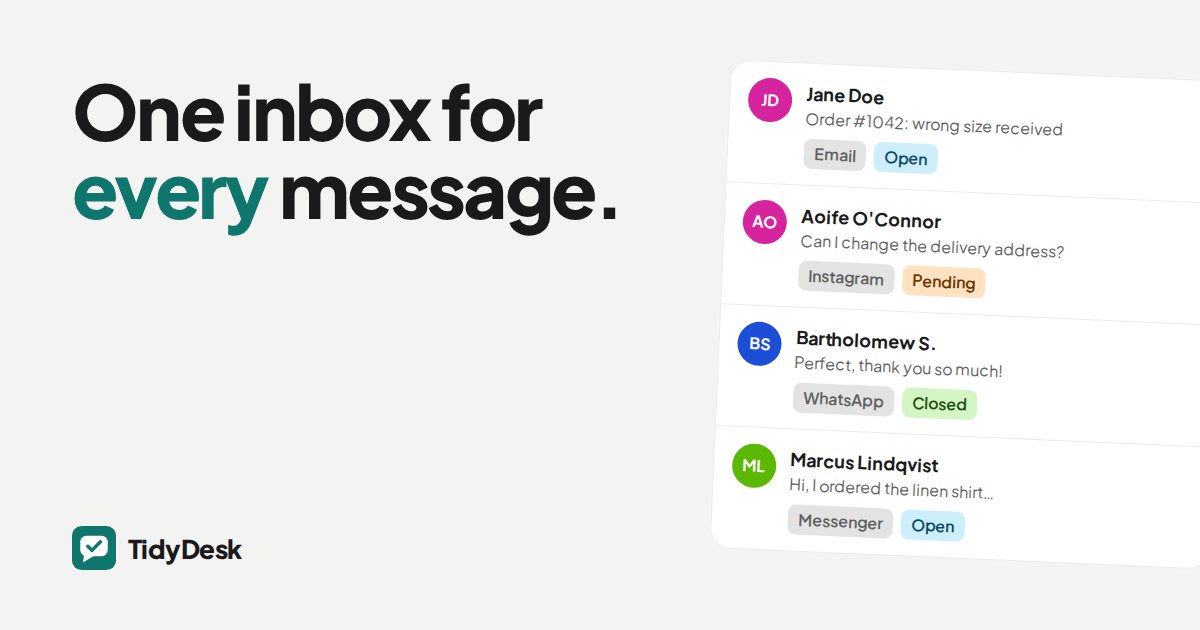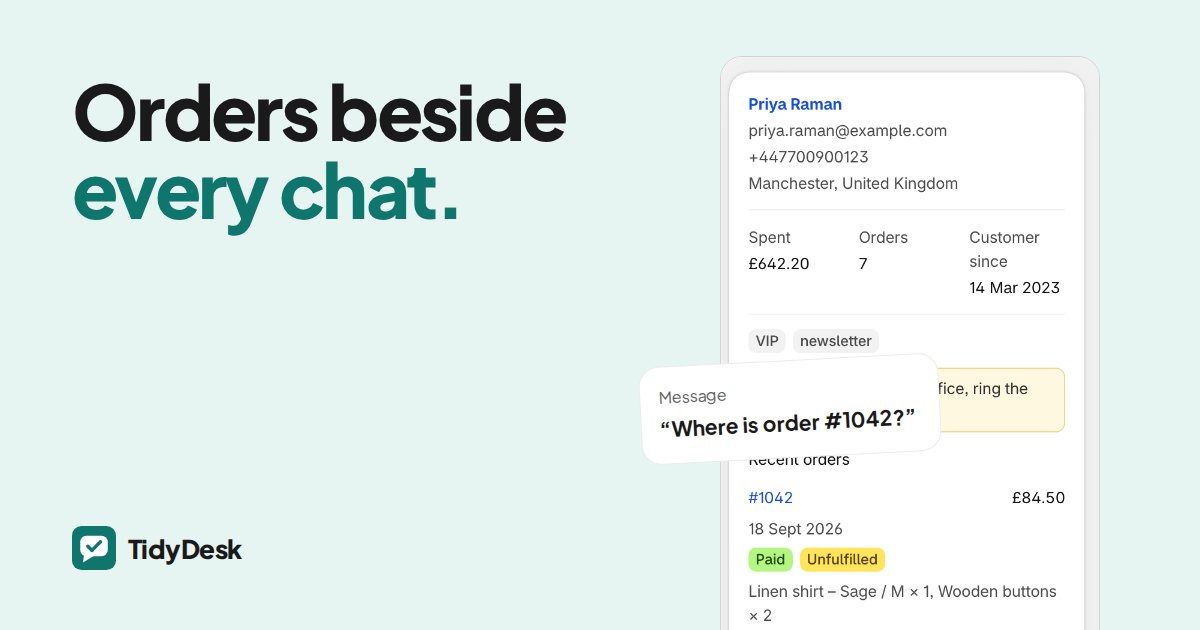
TidyDesk's inbox has a lot in it, but you only need to know four places. Once you've seen them, the rest falls into line.
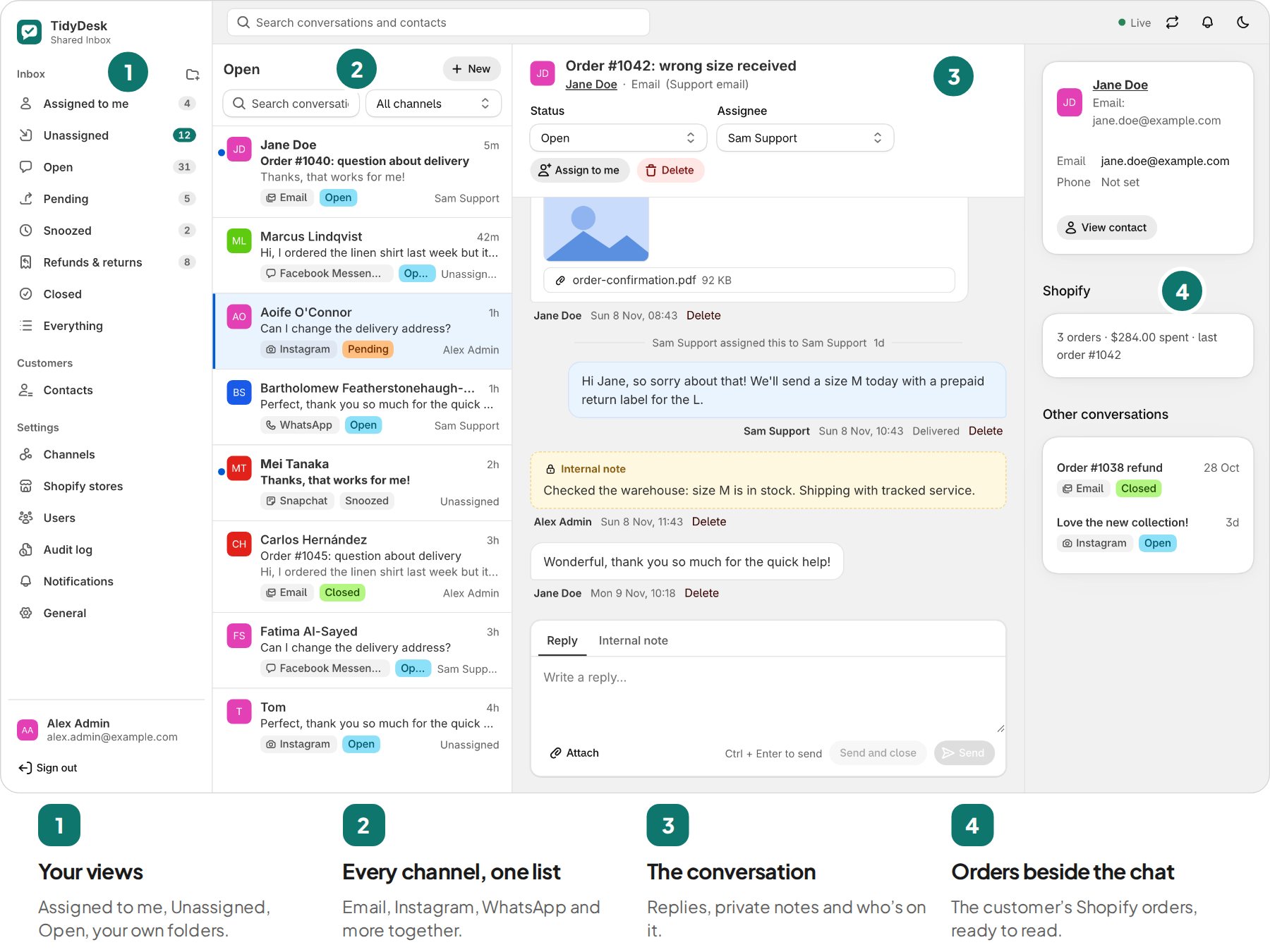
1. Your views.
The left-hand sidebar is how you slice the inbox. Assigned to me is your own work. Unassigned is everything nobody has picked up yet, which is where a small team should look first. Below those are Open, Pending, Snoozed, Closed and Everything.
You can also make personal folders, such as "Refunds & returns", that gather conversations from any channel and any status in one place. They're yours, so nobody else's sidebar changes.
2. Every channel, one list.
This is the heart of it. Email, Facebook Messenger, Instagram, WhatsApp, TikTok Shop and the conversations you've logged by hand all sit in one list. Each row shows the customer, the latest message, which channel it came from, its status and who has it.
A blue dot means you haven't read it yet. Those dots are yours alone, so reading something doesn't clear it for a teammate. You can search names, emails, phone numbers, usernames, subjects and the text of messages, and narrow the list to one channel.
3. The conversation.
Open a row and you see the whole thread, with the customer's messages in white, your team's replies in blue and internal notes in yellow. At the top you set the status and who it's assigned to, or press Assign to me.
The box at the bottom has two tabs. Reply sends a message back on the same channel. Internal note is private to your team, and nothing you write there is ever sent to the customer. You can attach files, and Send and close replies and finishes the conversation in one click. If a message can't be sent, it says "Not sent", tells you why and offers Retry.
A few words on statuses. Open means it needs someone. Use Pending when you're waiting on something. Snoozed hides it until a date you choose, or until the customer writes back. Closed is done. If a customer writes to a closed conversation, it opens again.
4. Orders beside the chat.
On the right is the customer, with their Shopify details and orders underneath. We cover this properly in seeing orders beside every chat. Under it, Other conversations lists everything else this person has said to you, on any channel, so you never ask them the same thing twice.
The small things.
- The green Live dot at the top means the inbox is updating by itself. You never need to refresh.
- The bell shows mentions, assignments and replies on your conversations.
- There's a light and a dark theme, and a button to switch.
- On a phone, the same inbox fits the screen, and you can install it like an app.
Next, see how a team shares the work in working together.